


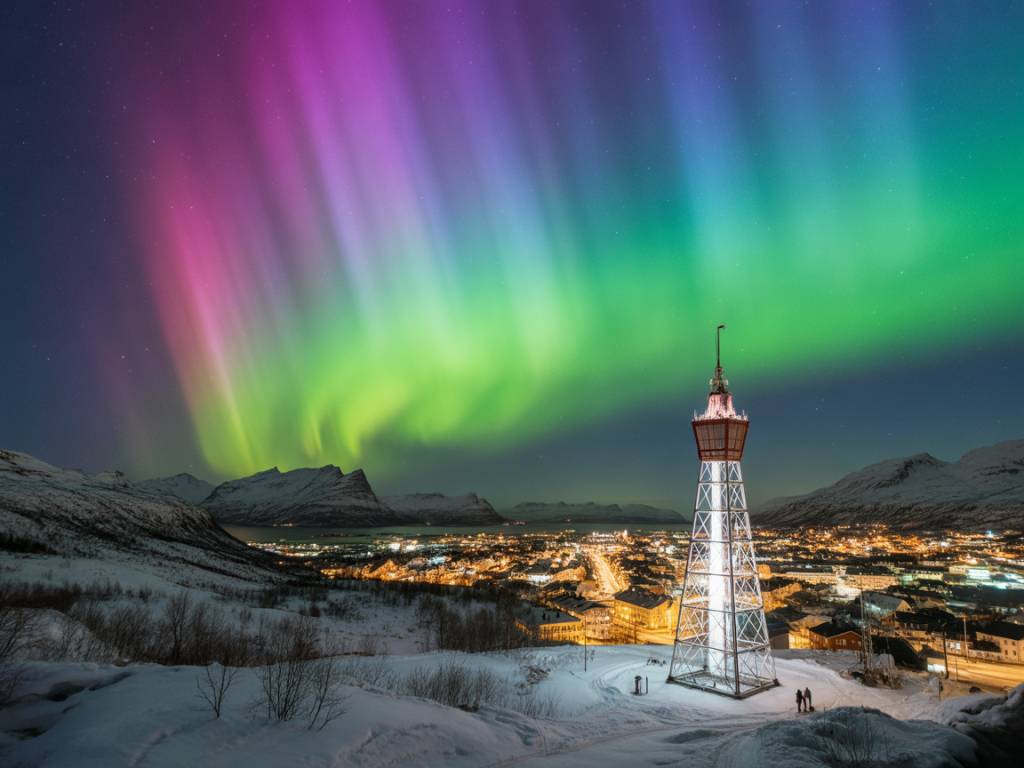
Can you really photograph the northern lights with a smartphone in the middle of a city and still get bright, usable images? Yes. Are you going to win a National Geographic award with it? Probably not. But you can absolutely come home with clear, colorful shots that look good on a big screen and that don’t scream “green blur”.
In this guide, I’ll walk you through exactly how I shoot aurora with a phone when I’m stuck in town: where I stand, how I set up the camera, which apps matter, and what to expect from the final result. The goal is simple: less time fiddling with menus, more time watching the sky.
Understand the limits (so you can work around them)
Before touching the camera app, it helps to know what you’re fighting against in a city:
- Light pollution: Streetlights, building lights and car headlights wash out the sky, especially low on the horizon.
- Short phone sensor: A smartphone has a tiny sensor compared to a DSLR. It needs more time and software tricks to collect enough light.
- Noise and blur: Long exposures on a phone + shaky hands = grainy or smeared aurora.
The trick is to minimize light pollution, maximize stability, and help the phone “see” the aurora. You’re not trying to compete with a full-frame camera; you just want a bright, clean shot where the aurora is obvious and not drowned in orange city glow.
Pick the right night: KP, clouds and city reality
If you’re in the city, you can’t rely on faint auroras. You need a stronger display to punch through the glow. I use three quick checks:
- KP index: In a city at mid to high latitude (Tromsø, Reykjavik, Rovaniemi, Fairbanks), I start getting hopeful from KP 3–4. For more southern cities (Edinburgh, Stockholm, Anchorage outskirts), I prefer KP 4–5+.
- Cloud cover: Anything more than 50–60% low cloud is usually a bad sign in the city. One solid cloud bank lit by city lights can reflect everything back down and leave you under a bright orange ceiling.
- Moon phase: A half-moon or more will brighten the sky. It’s not a deal-breaker, but you’ll need higher activity (KP 4+) to compensate.
On Northernlights-Forecast, look at:
- The KP forecast for the night.
- The city-specific sky clarity (cloud maps and transparency).
- The predicted time of maximum activity (often around magnetic midnight, which may be different from clock midnight).
If the site says “low KP, scattered high clouds, poor visibility”, don’t burn all your energy trying to photograph. Use it as a scouting night instead: find dark corners, good foregrounds, and check safety and access for a better forecast later.
Choose your urban location like a scout
In a city, 200 meters can change everything. I treat it like a micro “chase” on foot. Here’s what I look for:
- Block the worst lights: Move behind a building, a hill, or a line of trees to hide direct streetlamps and car lights. Even a simple wall or fence can help.
- Go slightly higher: A small hill, park slope, or viewpoint over the city gives you more sky and less glowing horizon.
- Use water if you can: Lakes, fjords, rivers or harbors reflect the aurora and reduce clutter from buildings on one side of the frame.
- Think foreground, not just sky: Bridges, church spires, harbors, silhouettes of trees or mountains. A strong, dark foreground helps hide light pollution and makes the aurora pop.
When I’m scouting in a new northern city, I usually pin:
- One urban park or cemetery: often darker and quieter.
- One waterfront spot: harbor, lake shore, or riverbank.
- One high point: viewpoint, hill, ski slope edge, or parking on a ridge.
All three should be reachable quickly on foot or by car. When the forecast spikes, you don’t want to spend 40 minutes crossing town.
Essential smartphone gear (small but game-changing)
You can do a lot with just the phone, but a few cheap accessories make a big difference in the city:
- Mini-tripod or clamp: A solid mini-tripod (or even a clamp you can attach to a railing) is non-negotiable if you want sharp aurora structures instead of blurry green clouds.
- Remote shutter or timer: Use a Bluetooth remote, earbuds button, or at least the 3–10 second timer to avoid shaking the phone when you tap the screen.
- Thin gloves with grip: Touchscreen-friendly gloves that still let you adjust the phone easily. Fumbling bare-handed in -10 °C is how phones get dropped in the snow.
- Power bank: Cold drains phone batteries fast. Keep a small power bank and cable in an inside pocket close to your body heat.
If you only buy one thing: pick up a small, sturdy tripod that can sit on a bench, fence, or rock. Stability is the difference between “usable” and “trash” in low light.
Camera app setup: ditch auto mode
Automatic night modes are getting better, but they often over-smooth the sky and turn the aurora into a uniform green haze. When possible, switch to Pro / Manual / Night mode and adjust the basics yourself.
Here are starting values that work on most recent phones (iPhone 12+ / Pixel 4+ / Samsung S20+ or similar):
- Lens: Use the main wide lens, not ultra-wide or telephoto. It’s usually the brightest sensor with the best quality.
- Focus: Set focus to infinity (often the mountain or “∞” icon). If you don’t have this, tap to focus on a distant light on the horizon, then lock focus.
- ISO: Start around ISO 1600–3200. If your phone is older or very noisy, try staying closer to 1600.
- Shutter speed: Start at 3–5 seconds. If the aurora is very bright and fast-moving, shorten to 1–2 seconds to keep structure. If it’s faint and slow, go up to 8–10 seconds.
- White balance: Lock it around 3500–4000 K if you can, to avoid weird color shifts when city lights flicker.
- Resolution / format: Enable RAW (DNG) if your phone supports it. It gives you much more flexibility to clean up light pollution later.
Many phones will override some of these with their night mode. That’s fine if you’re in a rush. But if your aurora looks like a smooth green fog with no structure, night mode is “helping” too much; switch to a more manual mode and lower noise reduction in settings if possible.
How to frame and expose for bright aurora in the city
Once you see a clear arc or moving curtains, it’s tempting to point straight up and shoot only the sky. In the city, that often gives you a messy, flat result. Instead:
- Keep some horizon: Include 20–40% of the frame as horizon or foreground (water, trees, buildings). It anchors the viewer and hides low-level light pollution.
- Avoid direct streetlights in the frame: One bright lamp can force the phone to darken the whole image. Step one meter left or right to hide it behind a tree or wall.
- Watch histogram if you have it: If your app shows a histogram, aim for the curve to sit in the middle, without clipping on the right (blown highlights in the aurora) or left (completely crushed shadows).
- Bracket when possible: Take a series: one at 2 seconds, one at 4 seconds, one at 8 seconds. City auroras change fast; having three exposures gives you options later.
If the aurora is faint and almost invisible to the eye, your phone can still catch it. In that case, lean toward:
- Higher ISO (3200–6400)
- Longer shutter (8–15 seconds)
Expect more noise and less detail, but you will still have a record of the event — which is often more than what the naked eye perceived in the city glow.
Dealing with orange and blue city glow
City lights usually add two ugly things to your aurora shots:
- An orange or yellow band near the horizon from sodium lamps.
- A blue or white cast from LED streetlights and shop signs.
You can reduce this directly while shooting:
- Higher framing: Tilt the phone slightly up to exclude the worst of the horizon glow.
- Use silhouettes: Place a dark building, hill or tree line where the glow is strongest so only the top of the aurora and the sky remain bright.
- Rotate and move: Sometimes simply shooting away from the downtown core by standing on the edge of the city will halve the glow in your frame.
If your app allows, try:
- Lowering exposure compensation slightly (-0.3 to -0.7 EV) to keep lights from blowing out and to preserve aurora color.
- Warming or cooling the white balance gently to neutralize the worst cast. Don’t worry too much; RAW editing later can fix a lot of this.
Quick in-field workflow: from setup to first good shot
Here’s the step-by-step routine I actually use when I land in a bright city with a decent aurora forecast and only a phone in my pocket:
- 1. Check the sky with your eyes first: Find the brightest patch; that’s usually where the aurora arc is or will be.
- 2. Move to a pre-scouted dark spot: Park, waterfront, hill or cemetery. Away from direct streetlights.
- 3. Plant the tripod / stabilize: Put the phone at chest or head height, on a stable surface. Use a case clamp if the wind is strong.
- 4. Set camera mode: Switch to Pro/Night, main lens, focus at infinity or distant light, timer 3 seconds.
- 5. Start with test settings: ISO 1600–3200, 4-second shutter, white balance 3500–4000 K, RAW on if available.
- 6. Take a test shot and check: Zoom in. Are stars sharp or smeared? Is the aurora too dark or blown out? Adjust shutter and ISO accordingly.
- 7. Lock a decent combo: Once you find a good balance, shoot several frames as the aurora moves. Don’t change settings with every shot; let the sky do the work.
I try to spend no more than 2–3 minutes tweaking at the start. After that, I mostly watch the sky, adjust framing, and hit the shutter when the structure looks good.
Extra tricks for better city aurora shots with a phone
Once your basics are solid, a few extra techniques can make a phone shot look much more intentional:
- Use reflections: Puddles, wet pavement, ponds and fjords can double the aurora and reduce the share of light-polluted sky in your frame.
- Try vertical framing (portrait): Works well for pillars and corona overhead, especially if you include a church, mast or tree below.
- Panorama cautiously: Some phones allow night panoramas. Move slowly and keep the horizon line straight. Great for big arcs over a city skyline.
- Minimal digital zoom: Avoid zooming in more than 2x. It just magnifies noise. If you want a tighter crop, do it later in editing.
If your phone supports it, also try:
- Astro / long exposure mode: Only if the aurora is slow and faint. For fast, bright displays these modes can smear all structure.
- Multiple exposure burst: Some apps stack several quick shots into one. In a city, this can average out small flickers from cars and streetlights.
Stay realistic: what “bright” means for a smartphone in town
A common frustration: the aurora looks huge and dramatic to your eyes, but your phone shows a dull green strip. Part of this is physics, part is screen brightness and expectations. A “bright” city aurora shot with a phone usually means:
- The green (or purple) band is clear and defined, not just a vague smudge.
- You can see some internal structure: rays, curtains or a bright arc edge.
- The city foreground is recognizable but not dominating: silhouettes, reflections, or a gentle glow.
What you should not expect every night, even with good technique:
- Perfectly clean, noise-free images at 100% zoom.
- Fine filaments and textures like a high-end DSLR on a mountain.
- Strong reds and deep purples in heavy light pollution.
But for most travelers, a sharp green arc over a known landmark — shot hand-sized, printed small or shared online — is already a big win.
Safety and comfort when shooting aurora in the city
Even in town, night photography has a few basic rules:
- Don’t isolate yourself too much: Slightly darker doesn’t have to mean “hidden and unsafe”. Parks with some traffic, waterfront paths and viewpoints with locals around are usually fine.
- Watch your feet, not just the sky: Camera on tripod + head up = classic trip hazard. I’ve seen more people almost fall into ditches while watching coronas than in any other situation.
- Dress like you’ll stand still for 1–2 hours: For photography you move less than on a simple “aurora walk”. Add one extra layer than you think you need.
- Keep the phone warm between shots: Slip it into an inner pocket when not actively shooting to preserve battery and reduce condensation.
After the session: quick edits that make a big difference
You don’t need full professional software to clean up city aurora shots. A few simple adjustments in any editing app (Lightroom Mobile, Snapseed, Darkroom, etc.) usually do the job:
- Increase exposure slightly: +0.3 to +0.7 EV if the aurora is darker than what you remember.
- Lower highlights a bit: To recover detail in the brightest parts of the aurora and in city lights.
- Lift shadows carefully: Only a little. Overdoing this brings out noise and ugly color in the city glow.
- Adjust white balance: Slide towards cooler tones to tame orange, but stop before the snow or water turns cyan.
- Selective noise reduction: Reduce color noise more than luminance noise; a slightly grainy sky looks better than a plasticky one.
- Gentle clarity / texture: A small bump can help define aurora structures, but don’t push it until stars look like needles.
If you shot RAW, you can recover more detail in the aurora and neutralize color casts far better than with JPEG alone. Even if you’ve never edited RAW before, mobile apps make the basic sliders easy to understand after a few tries.
Once you’ve cleaned one image, use the same settings as a starting point for the others from that night to keep a consistent look.
Putting it all together on your next city aurora night
To recap your city-smartphone strategy:
- Choose a night with decent KP (3–5+), low clouds, and manageable moonlight.
- Scout one or two darker urban spots in advance: park, waterfront, hill.
- Bring a small tripod, timer or remote, gloves and a power bank.
- Use the main lens in Pro/Night mode with ISO 1600–3200, 3–8 s exposure, focus at infinity, RAW if possible.
- Frame with a clean foreground and avoid direct streetlights in the frame.
- Take several exposures as the aurora changes, then do simple edits to balance brightness, color and noise.
You don’t need to leave the city, rent a camera bag, or become an imaging engineer to capture bright, convincing aurora photos. Start with what you have in your pocket, apply a bit of discipline, and let the sky do the rest. And when the forecast on Northernlights-Forecast shows that rare high KP + clear sky combo over your city, you’ll be ready to turn a quick night walk into a set of images you’ll actually want to keep.